What olw-player is for
olw-player plays MIDI/KAR songs, videos, MP3s and CD+G karaoke on the fly, without creating files, and shows the lyrics (or the video) on two windows: the Main monitor and the Mirror. It is the successor of midiXlinux.
The sound improvements to MIDI files (corrections, style, effects) are applied while you listen: the original file is never modified.
The program language (Auto / Italiano / English) is chosen with the small menu at the top left; the change is immediate.
↑ indexGetting started in 10 steps
A simple checklist to hear olw-player at its best right away. After that you can try the options one at a time and get the most out of it.
- Download olw-player for your operating system (Windows, macOS or Linux) from the download page and install it.
- Download the SoundFont
airfont_380_final.sf2: it is the one recommended to start with. Look for it on Musical Artifacts (or search the internet) and check the licence of the file you download. - Put it in a folder you will always use, for example Music.
- Download a few MIDI files, if you do not already have any.
- Select the SoundFont: click Choose SF2 and pick
airfont_380_final.sf2. - Drag one or more MIDI files onto the main window: they form the playlist.
- Save the playlist (Save button) giving it a name: the
.plifile goes in the Music folder. - Open Options and, to start, set the checkboxes as in the first image; then press Apply.
- In the main window set the controls as in the second image.
- Double-click one of the MIDI files in the playlist: playback starts.
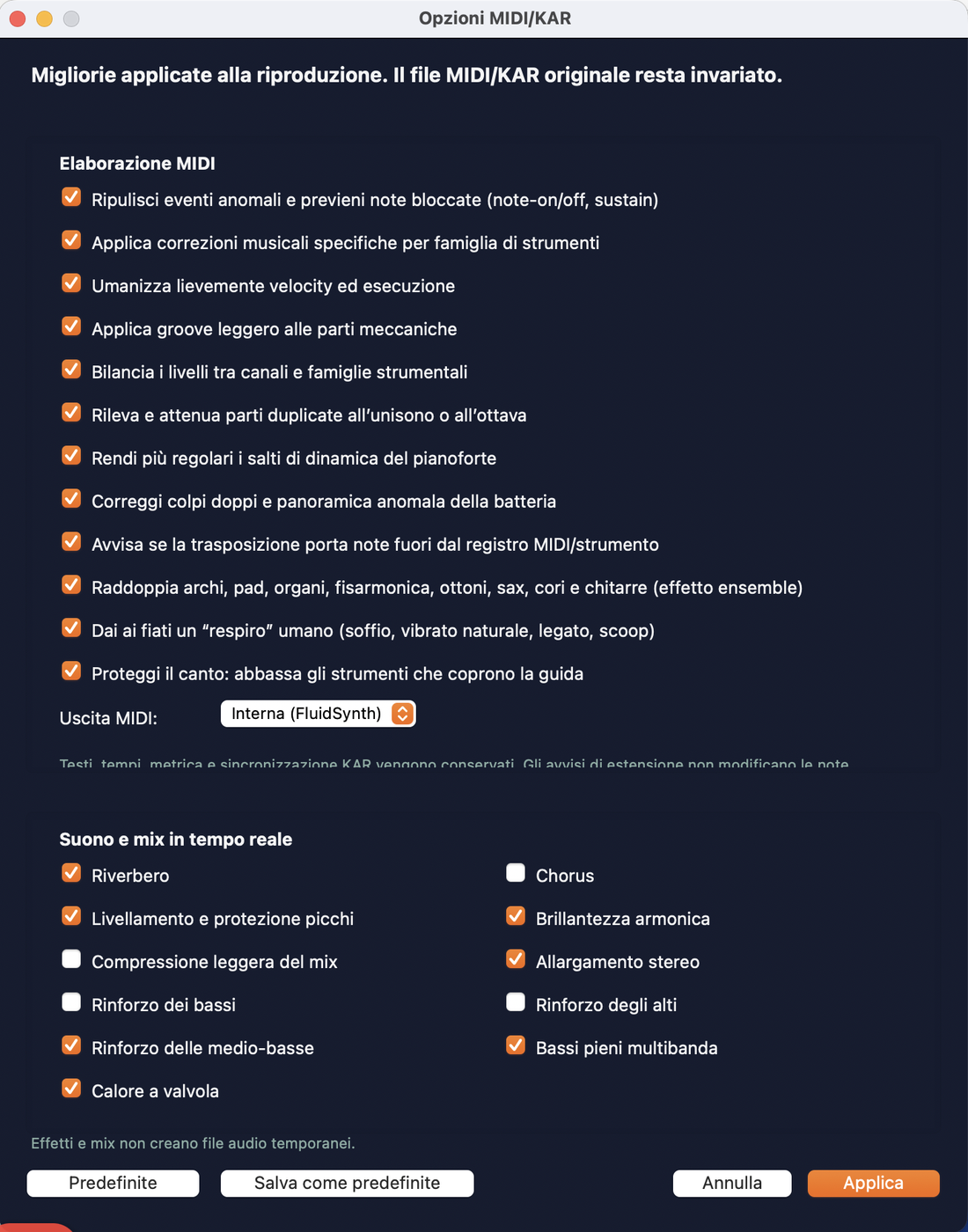
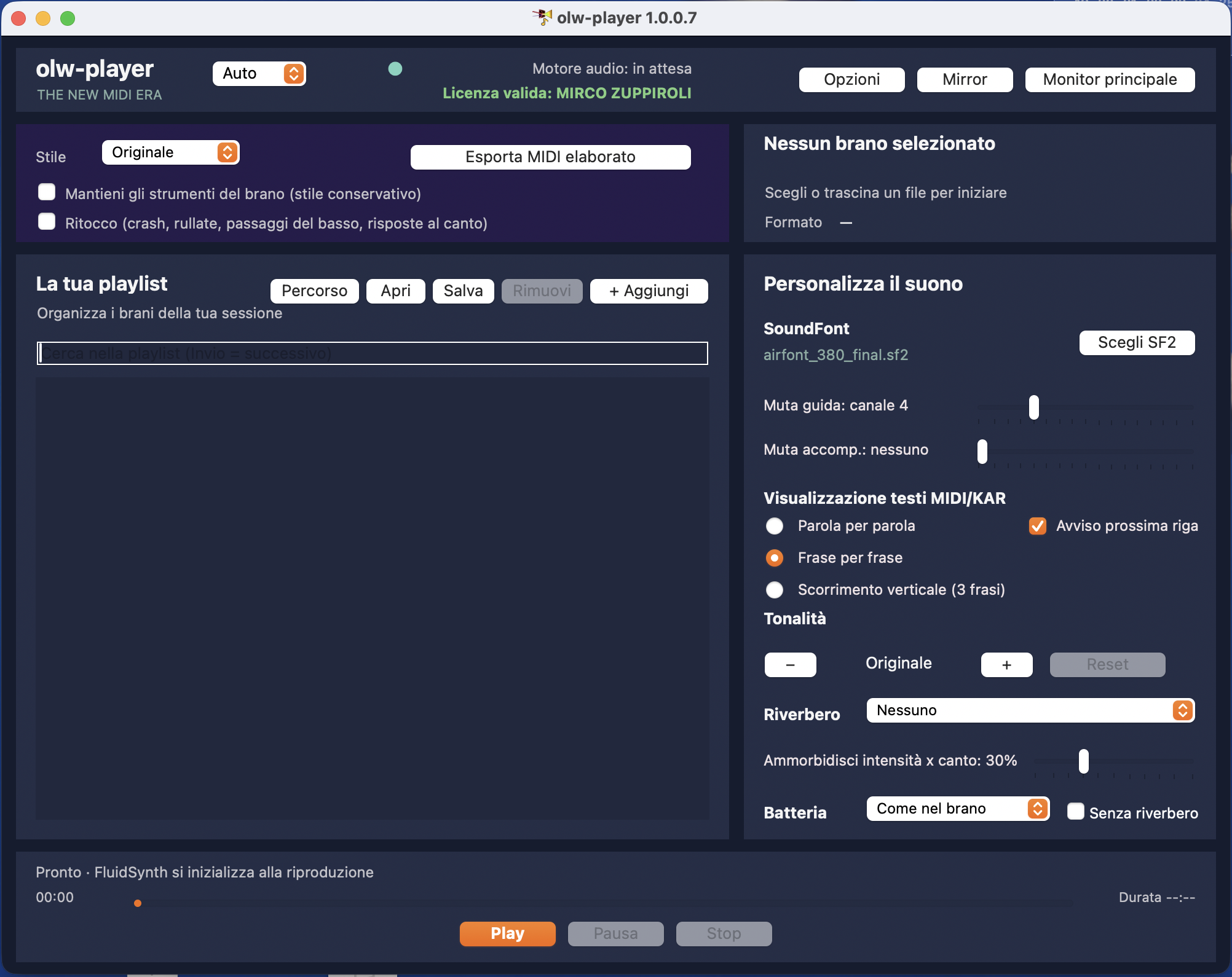
airfont_380_final.sf2, lyrics Line by line with Next line notice enabled. Key Original, Reverb None, Soften vocal protection 30%, Drums As in the song with No reverb unchecked. The notice is available in all three lyrics modes.Supported formats
- MIDI / KAR (.mid, .midi, .kar): played with FluidSynth and a SoundFont. KAR lyrics scroll in sync. The Options, style, channel mute and key from -12 to +12 apply here.
- Video (.mp4, .mov, .avi): decoded with GStreamer and shown on the two windows. Key from -3 to +3 without changing the speed.
- MP3: audio only, with key from -3 to +3.
- CD+G (.cdg with the audio file of the same name): karaoke graphics synchronized to the audio, key from -3 to +3.
gstreamer1.0-plugins-base, -good, -bad (contains the key filter) and gstreamer1.0-libav. For MIDI the FluidSynth library supplied with the program is needed.On Windows and macOS GStreamer and FluidSynth are already included in the program, nothing to install. On Windows the installer also updates the Microsoft Visual C++ runtime: if «no element pitch» appears for a video or an MP3, reinstall with the latest installer (or install the latest Microsoft Visual C++ Redistributable x64).
Playlist
Choose songs... opens the file picker; you can also drag files onto the window. Songs are added to the playlist, which stays in alphabetical order.
- + Add: adds more songs.
- From folder (Percorso): choose a folder or a USB stick and the program finds all playable songs (MIDI, KAR, MP3, CDG, video), subfolders included, and creates the playlist by itself. The name is the folder (or disk) name with
_dirfor a folder,_usbfor an external disk and_hdfor the hard disk, plus the system suffix, for exampleBasi_usb_olw_osx.pli. A new playlist is also created by dragging files onto the window: at the first save the program asks for the name. - Open / Save: the playlist is saved in a
.plifile and reopened when needed. If the playlist was created on another computer and a song is not found at the saved path, the program looks in the path for the Musica (or Music) folder and restarts from the one on this computer; the.plifile is not modified when opened. You can also listen to songs on the fly, without creating a playlist: they stay in the list and the program asks whether to save them to a playlist when you close it, or when you press Open or From folder. - Search: the field above the list selects the first song whose name contains the typed text; Enter goes to the next one. The list is not filtered.
- Remove: removes the selected song from the playlist (the file stays on disk).
- A song no longer found on disk appears with the label (not found).
- Right-click on a song: Open the song's folder shows the file in the file manager, besides Help and About.
.mp3 that has a .cdg of the same name next to it, a single song remains in the playlist, the .cdg: the audio is taken from the MP3 (or from a .wav, .ogg, .flac, .m4a with the same name).
Play, Pause, Stop
Select a song and press Play. During playback Pause becomes Resume; Stop stops and returns to the beginning.
Changing song in the playlist stops the current playback. When a MIDI/KAR, an MP3 with lyrics, a video or a CD+G starts, the Main monitor opens by itself: with a single monitor at the bottom left, without covering the Play bar (the control window moves to the top right); with two monitors on the second one. The Mirror opens with its button.
For MIDI/KAR, after about half a second of playback, an information window (once per song) lists where the program reinforces or doubles instruments: see Doubling and reinforcing guitars and winds.
↑ indexProgress bar
It shows the position reached, with the elapsed time on the left and the duration on the right. Click the bar (or drag) to jump to that point: it works with all formats, even when paused.
- MIDI/KAR: the song resumes from the chosen point and the lyrics realign.
- Video: the jump is exact, so it may take a moment.
- CD+G: the graphics rebuild the screen of the new position by themselves.
Key
The − and + buttons lower or raise by one semitone, Reset returns to the original. The change applies immediately, even during playback.
| Format | Range | How it works |
|---|---|---|
| MIDI / KAR | -12 to +12 | the MIDI is transposed; while listening, the song restarts from where it was |
| Video, MP3, CD+G | -3 to +3 | only the pitch of the sound changes; speed and sync stay the same |
MIDI style
The Style menu (under the song title) transforms the MIDI arrangement into the chosen style: Original (no change), Rock, Funk, Pop, Jazz, Ballad, Electronic, Blues, Disco / Dance, Latin / Bossa, Country / Folk, Reggae / Ska, House, Hip Hop, R&B.
- Rock: powerful drums (Power Kit), distorted guitar and rock organ one octave higher, in the background.
- Funk: eighth-note hi-hat with a few ghost snare hits, slap bass and clavinet.
- Pop: regular drums and bass with piano; the most neutral style.
- Jazz: jazz kit with ride, acoustic bass on the left and piano on the right, with the bass doubled at the octave.
- Ballad: soft drums and piano; it also works in 3/4.
- Electronic: electronic drums on a rigid grid, synth bass and synthetic sounds.
- Blues: shuffle rhythm with light brushes and hi-hat, acoustic bass.
- Disco / Dance: four-on-the-floor kick and open hi-hat, fingered electric bass, sparse funky guitar, strings and winds, discreet electric piano.
- Latin / Bossa: clave and timbales, soft drums.
- Country / Folk: acoustic bass, honky-tonk piano and discreet drums.
- Reggae / Ska: prominent electric bass, off-beat chords and organ.
- House: strongly reinforced electronic drums on a rigid grid and synth bass.
- Hip Hop: heavy kick and snare (Room Kit), sub-like synth bass and electric piano.
- R&B: prominent drums, synth bass and discreet electric piano; the treble boost turns on by itself to add clarity.
The re-arrangement works on songs in 4/4, 3/4 and 12/8 (a 4/2 or 2/2 is treated as 4/4). If the time signature is different or the chords are not recognized, the status bar says so («Re-arrangement not applied») and the style only acts on instruments, intensity and rhythmic grid.
For each style the program picks suitable instruments and drum kits, adjusts the intensity of each role and, if needed, moves the notes onto the rhythmic grid (drums are not quantized where the style lives on syncopation, like Funk).
Changing style while listening, the song restarts from the current point with the new style. The style is saved per song.
- The style is applied before groove, per-family corrections and humanization: these work on the result of the style.
- Electronic and very regular styles: better to turn off Humanization and Groove, which bring back small irregularities.
- Style is of no use for videos, MP3s and CD+G: the menu has no effect on them.
Compensated stereo widening: when enabled, a separate worker measures mid and side energy after the other effects. The audio filter reduces the unwanted frequency-dependent gain of 1.5 widening, preserving average spectral balance. Measurement adapts over roughly three seconds of audio and the filter changes gradually; this is not full-song analysis before Play. The callback never waits for the worker or reads files; compensation adds a 64-sample delay (about 1.45 ms at 44.1 kHz). With the option off, the previous path is used. No fixed cymbal cut or changes to manual volumes or MIDI notes.
Humanization and pedal: added note-release extensions cannot cross sustain, sostenuto, reset or note-stop events. This prevents an already released note from being captured by a later pedal press. Original pitches, onsets, controllers and authored overlaps are preserved; controllers on other tracks of the same channel are included.
↑ indexMute guide / backing
Two sliders (0-16) to silence up to two MIDI channels, typically the guide vocal and an instrument you want to replace live. 0 = no channel, n = MIDI channel n is excluded.
- Defaults: guide on channel 4, backing none (editable and saved per song).
- Mute changes immediately during playback without restarting from the beginning. If Protect the vocal, Styles or Touch-up are active, processing is realigned about 1.5 seconds after the last slider movement, resuming from the current position.
- It only concerns MIDI/KAR; on video, MP3 and CD+G the status says so.
Hover over the guide slider to see the probable melody channel and its instrument. This is a suggestion and never changes your channel selection automatically. On macOS control hints are shown in the status line at the bottom.
↑ indexSoundFont
Choose SF2 selects the SoundFont (.sf2) the MIDI is played with. It is needed to play MIDI files; the name of the chosen file appears next to the button (with (not found) if it no longer exists). The choice is saved per song and as the default.
airfont_380_final.sf2 (find it here), put it in a stable folder (for example Music) and select it with Choose SF2. See Getting started in 10 steps.
Reverb (room)
The Reverb menu (under the key) puts the MIDI in a real room: hall, large hall, studio... The sound is passed through the impulse response (a WAV file) of the chosen room, that is a convolution reverb, far more natural than FluidSynth's internal one.
- None: plays as before (with the internal reverb, if enabled in the Options).
- The choice applies immediately, even while listening, and is saved per song.
- The rooms are the
.wavfiles in theirfolder next to the program: to add one, just copy a WAV into it (mono or stereo, tail limited to 1.2 seconds) and restart olw-player. - It only concerns MIDI/KAR; it has no effect on video, MP3 and CD+G.
Soften vocal protection
The slider under the reverb sets how much Protect the vocal lowers the instruments where the guide is singing: 100% full reductions, 0% no reduction, 30% olw-player's suggestion. Try it if in a song the volume difference between sung and instrumental parts is too large (lower it) or if the guide stays covered (raise it). It is saved per song; you hear it at the next Play or, while listening, when you release the slider. It only concerns MIDI/KAR.
Drums (kit)
The Drums menu (under the reverb) changes the GM drum kit of channel 10 without touching the file: As in the song (default), Standard, Room, Power (rock), Electronic, TR-808, Jazz, Brush, Orchestra. It applies immediately, even while listening, and is saved per song. If a kit has toms that are too open (Standard and Room), try Power or Jazz. A kit chosen here also replaces the automatic Standard → Room switch of Protect the vocal. It only concerns MIDI/KAR and has no effect with external MIDI output.
The No reverb checkbox (next to the Drums menu) keeps the drums out of the convolution reverb: kick, snare and toms stay dry and the reverb only works on the rest. The drums play on a separate synthesizer, so it uses more memory. On by default. Saved per song; while listening the song restarts from the same point. It does not work with external MIDI output (there the drums already go to the expander). Only the fixed EQ (cut at 400 Hz and 1-2 kHz, air at 4-8 kHz) applies to the drums, not the other audio options (bass, tube...).
↑ indexLyrics display
For MIDI and KAR you choose how to show the lyrics on the two windows:
- Word by word: four phrases always present, with the current word colored.
- Line by line (default): four fixed lines, the current phrase in yellow and the next three in gray, so that in dense, fast lyrics you can see in advance what is coming. The line appears when the phrase starts. During long breaks the preview shows the upcoming line; the notice can be enabled or disabled with the checkbox described below.
- Vertical scroll (3 lines): the previous phrase, the one to sing in the center in yellow (with the current word in orange) and the next one; when the phrase ends the block moves up one line.
The font shrinks by itself until the line fits the window without wrapping. The choice is saved per song.
MIDI with a whole line per event: some files (even with quotes or line breaks at the edges of the text) do not give the time of each word but only that of the line. The program splits the line into words and estimates their timing: if it finds in the file a channel carrying the vocal melody (usually the guide), it assigns the syllables to its notes, so the timing is very close to the real one; if the vocal is not there or not recognizable, it spreads the syllables over the duration of the line and snaps them to the eighth notes of the bar. In this second case the color of the current word may be slightly early or late, while lines and phrases always appear at the right moment. When the file contains the word timings, those are used.
Notice before singing resumes
Next line notice, initially enabled, shows Next line in N s during the initial wait and long breaks without singing. It applies to Word by word, Line by line and Vertical scroll, on both the main display and mirror. It does not appear during normal line changes while singing. Uncheck it to keep the lyrics preview without the message. The choice is saved per song; with no active song it is saved in the defaults.
Karaoke chords encoded with a % prefix (such as %D7/ and %G/C) are excluded from the lyrics. For MIDI files containing only complete lines, individual word timings are reconstructed and should be checked while listening.
M-Live lyrics: MIDI files with M-Live SysEx lines and dedicated karaoke progress controllers are recognized automatically. Original syllable timing is used in all three lyric modes and the mirror, with standard lyric events taking priority. Ordinary NRPN controllers alone are never treated as lyrics. Files whose karaoke clock has already been lost do not receive invented timing: use the original MIDI or regenerate the corrected file with a version that preserves its clock.
↑ indexMain monitor and Mirror
Two separate windows show lyrics or video; the buttons at the top open and close them:
- Main monitor: opens automatically when playback starts; it uses the second monitor when available, or sits beside the controls on a single monitor.
- Mirror: compact window placed in the available space, down to 260 pixels wide. When needed the player moves left and returns to its previous position when the mirror is closed.
With video and CD+G both windows show the same image, decoded once. The windows are borderless: drag inside to move them, or drag edges and corners to resize them; double-click to switch between full screen and the previous size. Use the Main monitor and Mirror buttons in the player to hide them.
The main display and mirror stay above the player window while visible, including when using the app controls. The existing buttons let you hide and reopen them.
The main window adapts its height to the monitor work area when opened. Options uses the wide layout: MIDI processing on the left, sound and mix on the right, buttons at the bottom. Layout is set when opening the window and does not automatically change when moving it to another monitor.
↑ indexVideo, MP3 and CD+G
- The video is shown fitted to the window, with black bars if the proportions differ.
- For CD+G the time comes from the audio: pause, jumps and key stay in sync. If the audio file of the same name is not found, the program says so.
- MP3s play without an image. If the MP3 contains synchronized lyrics (ID3 SYLT tag, as in Winlive files, or a Lyrics3 block at the end of the file with [mm:ss] lines, as in M-Live and Song Service exports) they are shown on the two windows with the same three modes as MIDI; unsynchronized lyrics (USLT) are not shown.
- The MIDI options and DSP effects of the Options window do not apply to these formats.
MP3 files containing M-Live SYLT lyrics with the Sincro by M-live descriptor and a recognizable nonstandard header are also supported. Timing remains in milliseconds and works in all three lyrics modes and the mirror. This does not imply support for every malformed SYLT tag.
Options
The Options button opens the MIDI improvements and the sound effects. Each option, what it is for and what it may conflict with, is explained on the Help - Options page.
↑ indexPer-song settings
For each song the program remembers key, style, mute, SoundFont, lyrics mode and options. When you reopen the song you find everything as you left it. The values used when no song is selected (or with Save as defaults in the Options) are the global settings.
↑ indexExport processed MIDI
The Export processed MIDI button (next to the Style menu) saves to a new .mid file the MIDI as you are hearing it: with the chosen style, corrections, key and muted channels. Use it after starting the song; the original file is not touched.
License and free trial
olw-player can be tried free for 30 days, with all features. To keep using it after the trial you need a license, which always includes all features: styles and MIDI export included.
| Plan | Price | How it works |
|---|---|---|
| Monthly | 3,95 € / month | works as long as the subscription is active; if you do not renew it, it goes back to the end-of-trial state |
| Yearly | 29,95 € / year | same as monthly, at a reduced price |
| 5 years (one-time payment) | 59,95 € | you receive all updates, including new major versions, for 5 years from purchase; afterwards the program keeps working, without new versions |
- The license status is shown in the main window (trial with days left, or the holder's name).
- When the trial ends, or a subscription is not renewed, the program no longer plays.
- A discounted bundle with Crea Video Lyrics is also available, with the same plans.
- Prices and purchase are on the demicons.it website. Choose the plan in the table and press Order online: after payment you receive the key, to enter in the program (right-click, License...), and you can activate it on 2 computers. Subscriptions are managed or cancelled from the customer portal link in the purchase email. The bundle, and a license by email, can always be requested by writing to the address below; for any question write to demiconsultingx@gmail.com.